Introduction
If you are new to Linux or command line interfaces then you may not have heard of tmux.It is one of the numerous terminal multiplexers that are used by Linux system admins and other power users.Other terminal multiplexers include GNU Screen and dvtm.They offer numerous advantages like persistent sessions and having more than one window at a time and the ability to switch to any of them.
Installation
Tmux can be installed on numerous Linux distributions in various different ways.
To install it on Debian/Ubuntu .Use the command below
$ sudo apt-get install tmuxTo install it on Redhat/CentOS, use the command below
$ sudo yum install tmuxTo install it on Arch-linux, use command below
$ sudo pacman -S tmux To install it on OpenSUSE, use the command below
$ sudo zypper install tmuxTo install it on Fedora , use the command below
$ sudo dnf install tmuxOnce tmux is installed on to your system,it is time to start using it.
Getting Started
Checking for tmux installation
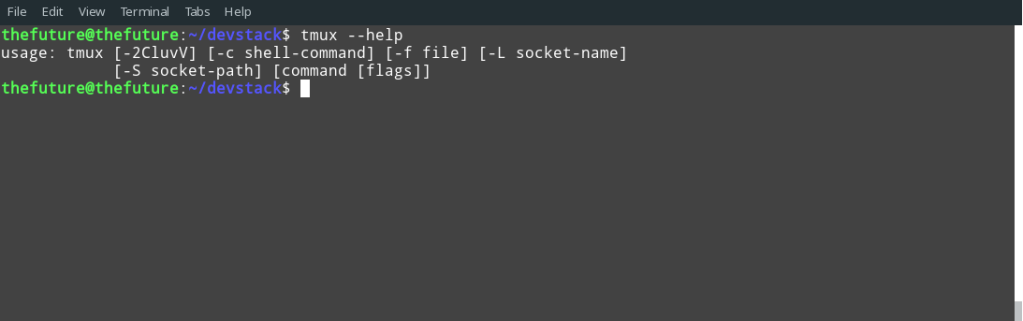
To check out that tmux has been installed,run the command below
$ tmux --helpYour output should be as below
Creating a tmux session
To create a new tmux session called manila-logs , run the command below
$ tmux new -s manila-logs # manila-logs is the session nameThe terminal window will be as below
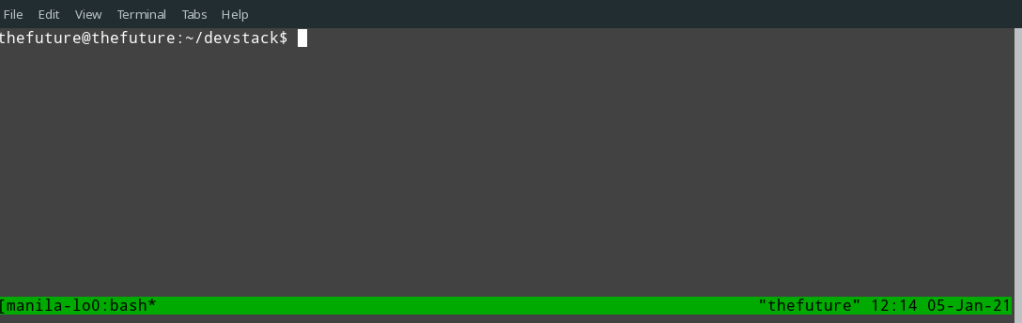
Please note the change from the initial terminal window.
Splitting panes
Splitting panes vertically
To split the active pane vertically , press Ctrl + b then %.
The terminal window will be split into two as below
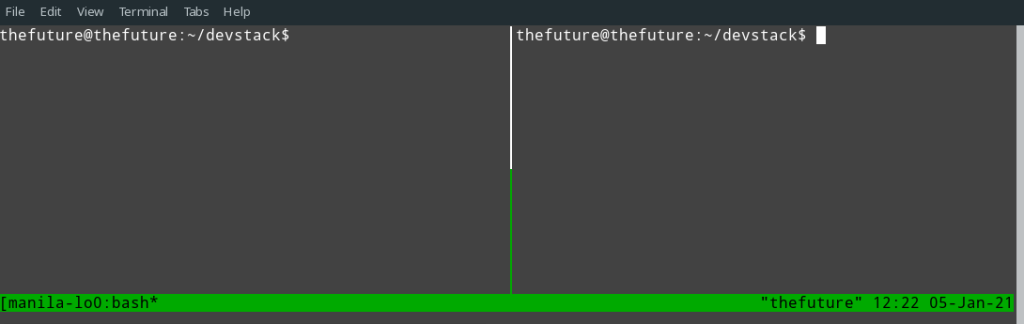
PS:Remember the pane with the blinking cursor is the active pane.
Splitting pane horizontally
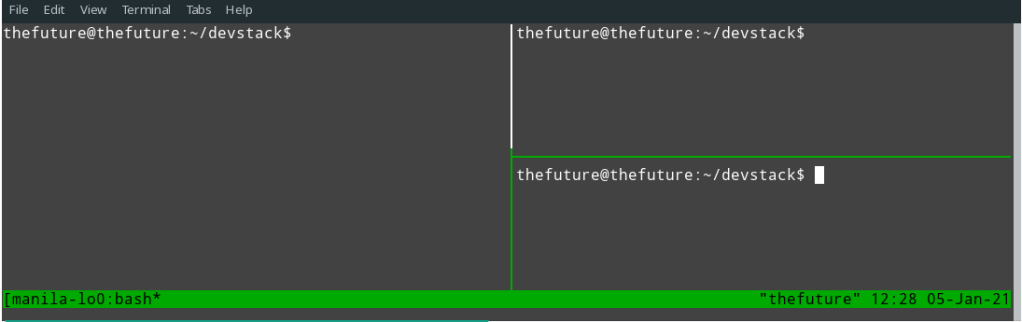
To split the currently active pane horizontally press Ctrl + b then ”
The active pane will be split horizontally as shown below
Moving to panes
Moving to panes is pretty easy in tmux.Just remember wherever the blinking cursor is, that is the active pane.
Move to pane above
Press Ctrl + b then up arrow key
Move to pane below
Press Ctrl + b then down arrow key
Move to pane left
Press Ctrl + b then left arrow key
Move to pane right
Press Ctrl + b then right arrow key
Move to next pane
Press Ctrl + b then o
Deleting active pane
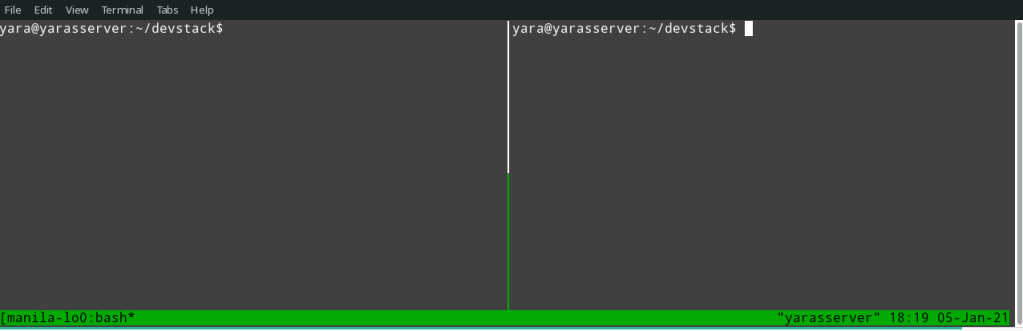
Press Ctrl + b then x
The result would be as below
Detaching from session
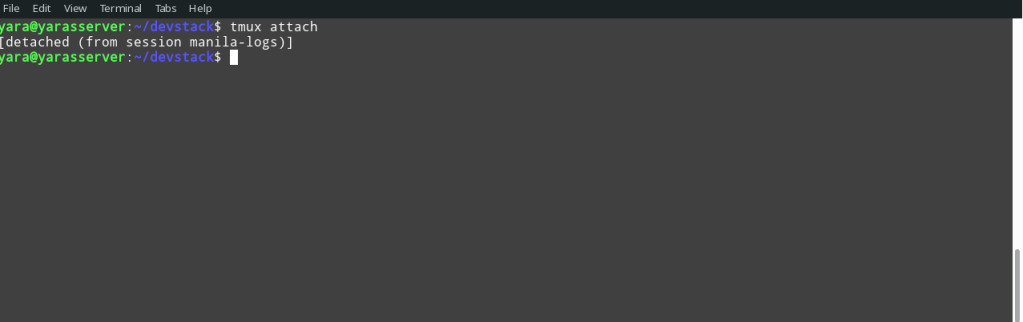
To detach from the tmux session, press Ctrl + b then d.
This will return you back to the normal terminal window as shown below.
Listing all available sessions
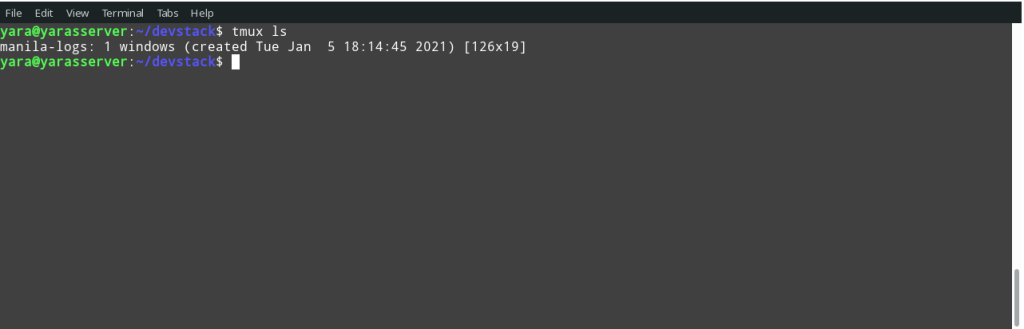
To list out all available sessions on tmux , run the command below
$ tmux lsor
$ tmux list-sessionsAll the available sessions will be listed out with the date of creation.This can be seen below.
Attaching to an existing session
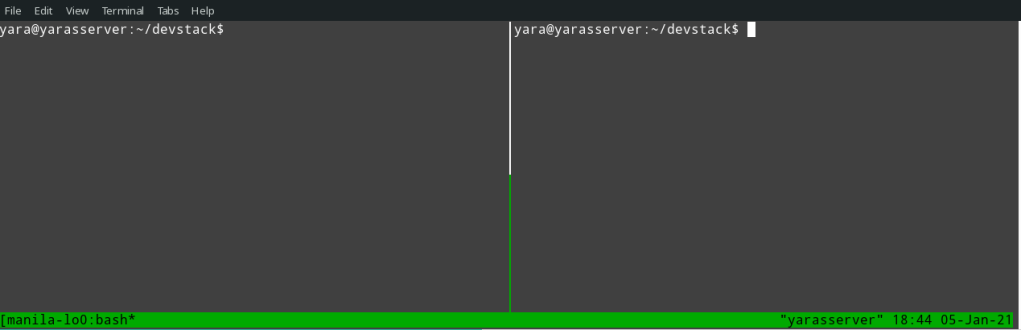
To attach to an existing session , on the command interface run the command below
$ tmux attach -t manila-logs #manila-logs is the session nameThis will get us into the session where we can see our panes as depicted below.
Deleting a session
To delete and existing session , run the command below
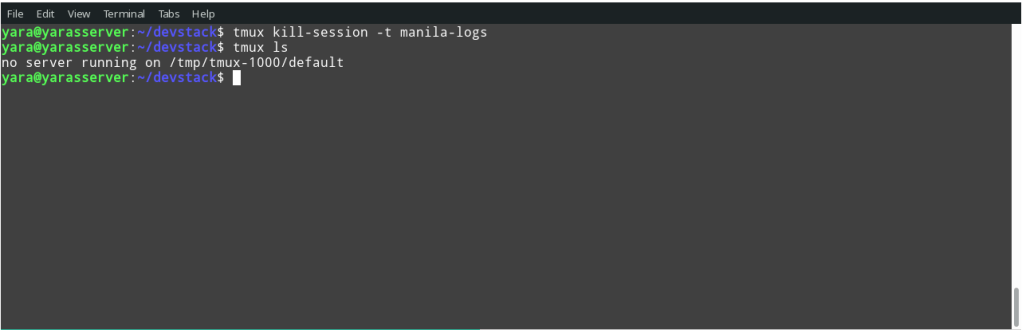
$ tmux kill-session -t manila-logs #manila-logs is the session nameThis will delete the mentioned session and it will no longer be among the existing sessions.
Outro
The above has been a short guide on how to use tmux.If you are interested to know more about tmux, please try the following links below.
- Tmux Cheat Sheet : for all you cheaters out there 😉
- Tmux Shortcuts and Cheat Sheet
- Awesome Tmux Tutorial
If you are interested in other terminal multiplexers such Screen and dvtm , please try any of the links below.
Have fun as you explore more of the cli and its power!


 Paul Mayero
Leave a reply to shayiris Cancel reply